Keyboard and Mouse Basics for Games
Every game has its own way of being played, but most of them use the same few controls. Once you know them, a new game feels familiar in seconds.
6 min read
On this page
This guide explains arrow keys, WASD, the space bar, the mouse and touch in plain words. It also shows you how to read the controls list on a game page, so you know what to press before you start.
Arrow keys and WASD
Arrow keys and the letters W, A, S and D do the same job in most games: they move your character. Up or W goes forward, down or S goes back, left or A goes left, and right or D goes right.
Arrow keys suit the right hand, and WASD suits the left hand. That leaves your other hand free for the mouse or the space bar. Pick whichever feels easier. Many games accept both.
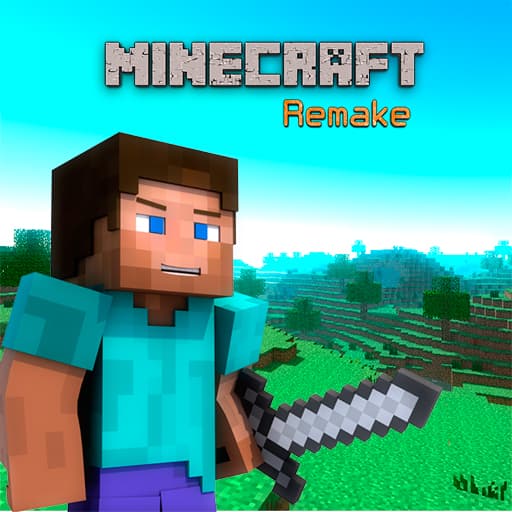
Minecraft Remake lists WASD or Arrow Keys to move, Left Shift to sprint and the mouse to look around. PokeBonk also lets you move with WASD or the arrow keys.
- W or up arrow: forward or up
- A or left arrow: left
- S or down arrow: back or down
- D or right arrow: right
The space bar and jumping
The space bar is the big key at the bottom of the keyboard. In many games it makes your character jump. In others it does a different main action, so check the controls first.
Fall Bros uses WASD to move and Space to jump, which is a good example of the common pairing. In Pinball, you hold Space and then release it to launch the ball.
A small tip: tap the key for a short jump and press it at the right moment rather than as fast as you can. Timing usually matters more than speed.
Using the mouse to aim and click
The mouse does two things. Moving it points or aims. Clicking makes something happen, such as a shot, a tap on a button or a choice in a menu.
Zombie Bears Night Shooting lists mouse control, so you aim with the mouse and click to act. Aiming works best with slow, smooth moves. Big quick swings often overshoot the target.
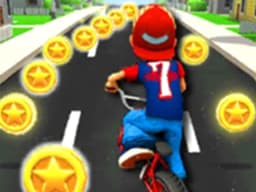
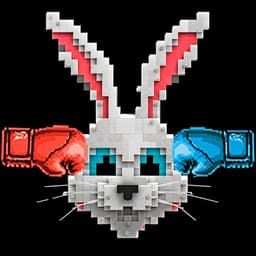
Some games use only clicks. Rabbit Punch Rabbit and Jumper jam both say mouse click or tap to play, so you do not need the keyboard at all. Bike Race Rush also plays with the mouse or a click.
If the pointer feels too fast or too slow, sit with your arm resting on the table. A steady arm makes aiming much easier.
Drawing and dragging with the mouse
Dragging means pressing and holding the left mouse button while you move the mouse, then letting go. You use it to pull, slide, draw or place things.
Love Balls 2D asks you to draw lines or shapes to bump the balls, and its control is the mouse. Press, draw a shape, then let go. If you do not like the result, try a different shape.
ZigZag Snow Mountain also uses mouse control, so it is worth moving the mouse gently and watching how the skier reacts before you try anything fancy.
- Press and hold the left button
- Move the mouse slowly
- Let go when the shape or move looks right
Taps and swipes on a touch screen
On a phone or tablet, your finger replaces the mouse. A tap is the same as a click. A swipe is a quick slide of your finger, like a small drag. Holding means keeping your finger down.
Talking Tom Gold Run Online uses tap or click, so it works either way. Super RunCraft lists arrow keys or touch. Pinball lets you touch and hold the table instead of holding Space.
Not every game is made for touch. Games that need many keys at once, like those with WASD and Space, usually play best with a keyboard.
How to read a controls list
Below each game there is a text with the controls. Read it before you press Play now. It takes a few seconds and saves a lot of guessing.
Look for the words that tell you the input type. Keyboard control means keys. Mouse control or use mouse to play means pointing and clicking. Tap or click means both mouse and touch work. Roof Rails - Color Stack 3D lists keyboard control, so expect to use keys.
Some lists are short and some are long. Minecraft Remake has several lines, including a scroll wheel to switch blocks. You do not need to remember them all. Learn movement first and add one new control at a time.
- Find the movement keys first
- Look for a jump or action key
- Check if the mouse is needed
- Note any extra keys, such as Shift
Tips for kids and parents
Start with games that use one control, such as click or tap only. They are easy to learn and good for younger players. Then try a game with arrow keys, and later one that mixes keys and the mouse.
Sit comfortably, with the keyboard in front of you and your hands relaxed. If a game feels too hard, use Restart and try again slowly.
Parents may want to look at a game first, especially for younger children, since games differ in style and content. Reading the controls together is a nice way to begin.
Frequently asked questions
Should I use arrow keys or WASD?
Use whichever feels better. Many games accept both, as PokeBonk and Minecraft Remake do. WASD leaves your right hand free for the mouse.
Which games only need a mouse click?
Rabbit Punch Rabbit and Jumper jam both list mouse click or tap to play. Love Balls 2D and Among Us Online Edition list using the mouse.
Which games use the space bar?
Fall Bros uses Space to jump. In Pinball you hold Space and release it to launch the ball.
Can I play with touch instead of a keyboard?
Some games allow it. Super RunCraft lists arrow keys or touch, and Talking Tom Gold Run Online uses tap or click. Games that list WASD usually need a keyboard.
What is the easiest control scheme for a young child?
One-button games are a good start, such as tap or click only. Reading the controls together first helps, and parents may want to check a game before a child plays.